Showing posts with label Active Choices. Show all posts

Thursday, October 28, 2021

Use Groovy to create a Jenkins Parametrized Free-Style Project

Motivation

The Jenkins Java API is a rich and endless source of useful functionality. It is also complex and unless you are a contributor that has built a Jenkins plugin, it is unlikely that you needed to deal with it directly. Nonetheless, even if you are not developing a plugin it is sometimes worth taking a look at how to use it in a simpler way. This simpler way is through Groovy the native scripting language of Jenkins. In my work with life-science Jenkins applications I work primarily with free-style parametrized jobs, and so in this post I will demonstrate how we can use selected parts of the Java API to programmatically create and parametrize a Jenkins job using just the Jenkins Groovy script console.

We can parametrize Jenkins jobs with some standard parameter types (String, Text, Boolean, File etc.) as well as with parameters that are contributed from installed plugins (for example Active Choices).

All of these parameters are defined as Jenkins extension points, and we can use the Jenkins API to discover them.
From the Jenkins API documentation we learn that 'The actual meaning and the purpose of parameters are entirely up to users, so what the concrete parameter implementation is pluggable. Write subclasses in a plugin and put Extension on the descriptor to register them.'

How to find the Jenkins available parameter types

To query for the available types we use the following Groovy code that calls the Jenkins Java API. Note that all of the example Groovy code in these examples can be executed from the Jenkins script console

ep=hudson.ExtensionList.lookup(hudson.model.ParameterDefinition.ParameterDescriptor)
ep.each{
println it.getDisplayName()
}

Executing this script produces the following results on my Jenkins instance:

We essentially lookup in the Jenkins registered extensions, those that are of a specific class. Each parameter type has a corresponding ParameterDescriptor class that describes it. We then use the getDisplayName method to get the human readable names of these parameters (otherwise we get the class name of the plugin contributing the parameter) .


A look at a parametrized job structure

The ParametersDefinitionProperty list


When we examine the configuration file (config.xml) of a parametrized job, we find that all of the job parameters are nested into a ParametersDefinitionProperty that acts as a container for all of the job parameter definitions


From the Jenkins API documentation we learn that '
ParametersDefinitionProperty Keeps a list of the parameters defined for a project.When a job is configured with ParametersDefinitionProperty, which in turns retains ParameterDefinitions, user would have to enter the values for the defined build parameters. 


Programmatic Job parametrization


It is possible to both create and parametrize a job programmatically, without ever opening the job configuration form 
 
create a new job, lets call it 'MyTest01'
myJenkins=jenkins.model.Jenkins.instance
myJenkins.createProject(FreeStyleProject,'MyTest01')
job1=myJenkins.getJob("MyTest01")
Add a ParametersDefinitionProperty to the job
job1.addProperty(new hudson.model.ParametersDefinitionProperty())
Now the job is parametrized!
println 'IsParametized:'+job1.isParameterized()
Result
IsParametized:true

Now we have a parametrized job, but have not defined any parameters yet. 

For simplicity, in this example we have used the null parameter constructor for ParametersDefinitionProperty. However, the constructor allows passing a list of parameter definitions, so if we add a list of ParameterDefinitions we can add the required project parameters!


Programmatic creation and parametrization of a free-style job

A complete example


We will now present a complete step-by-step example where we not only create a parametrized job but also add a couple of parameters. 

To make this example even more interesting, one of the parameters will be an Active Choices parameter, and in the process we'll show how you can add the required Groovy script for the Active Choice parameter configuration.

The following code is a complete example of creating and parametrizing a free-style job programmatically. 


Tasks

  1. Create a new Jenkins job
  2. Construct 2 parameters
    1. A simple String parameter
    2. An Active Choice parameter (with a secure groovy Script)
  3. Construct a ParametersDefinitionProperty with a list of 2 parameters
  4. Add the ParametersDefinitionProperty to the project
  5. Print some diagnostics
The task list labels also match the labels identifying the code fragments in the table below to make it clear what the code fragments do. 

a
jenkins=jenkins.model.Jenkins.instance
jenkins.createProject(FreeStyleProject,'MyTest01')
job1=jenkins.model.Jenkins.instance.getJob("MyTest01")

b.i
pdef1=new StringParameterDefinition('Myname', 'IoannisIsdefaultValue', 'MyNameDescription')
b.ii
sgs=new org.jenkinsci.plugins.scriptsecurity.sandbox.groovy.SecureGroovyScript("""return['A','B','C']""", false, null)
acScript=new org.biouno.unochoice.model.GroovyScript(sgs,null)
pdef2=new org.biouno.unochoice.ChoiceParameter ('AC_01TEST', 'ACDdescription','boo123', acScript, 'PARAMETER_TYPE_SINGLE_SELECT', true,2)

c,d
job1.addProperty(new hudson.model.ParametersDefinitionProperty([pdef1,pdef2]))
e
println 'IsParametized:'+job1.isParameterized()
println job1.properties
job1.properties.each{
  println it.value.class
  println 'Descriptor:'+it.value.getDescriptor()
  if( it.value.class==hudson.model.ParametersDefinitionProperty){
    println 'Job Parameters'
    println it.value.getParameterDefinitionNames()
    it.value.getParameterDefinitionNames().each{pd->
      println it.value.getParameterDefinition(pd).dump()
    }
  }
}
Result
IsParametized:true
[com.sonyericsson.hudson.plugins.metadata.model.MetadataJobProperty$MetaDataJobPropertyDescriptor@5ba29d96:com.sonyericsson.hudson.plugins.metadata.model.MetadataJobProperty@23d5994d, com.sonyericsson.rebuild.RebuildSettings$DescriptorImpl@52e43430:com.sonyericsson.rebuild.RebuildSettings@56c0e80c, hudson.model.ParametersDefinitionProperty$DescriptorImpl@1b2facb8:hudson.model.ParametersDefinitionProperty@6054a6c5]
class com.sonyericsson.hudson.plugins.metadata.model.MetadataJobProperty
Descriptor:com.sonyericsson.hudson.plugins.metadata.model.MetadataJobProperty$MetaDataJobPropertyDescriptor@5ba29d96
class com.sonyericsson.rebuild.RebuildSettings
Descriptor:com.sonyericsson.rebuild.RebuildSettings$DescriptorImpl@52e43430
class hudson.model.ParametersDefinitionProperty
Descriptor:hudson.model.ParametersDefinitionProperty$DescriptorImpl@1b2facb8
Job Parameters
[Myname, AC_01TEST]
<hudson.model.StringParameterDefinition@125d74 defaultValue=IoannisIsdefaultValue trim=false name=Myname description=MyNameDescription>
<org.biouno.unochoice.ChoiceParameter@35c83a1d choiceType=PARAMETER_TYPE_SINGLE_SELECT filterable=true filterLength=2 visibleItemCount=1 script=GroovyScript [script=return['A','B','C'], fallbackScript=] projectName=null randomName=boo123 name=AC_01TEST description=ACDdescription>

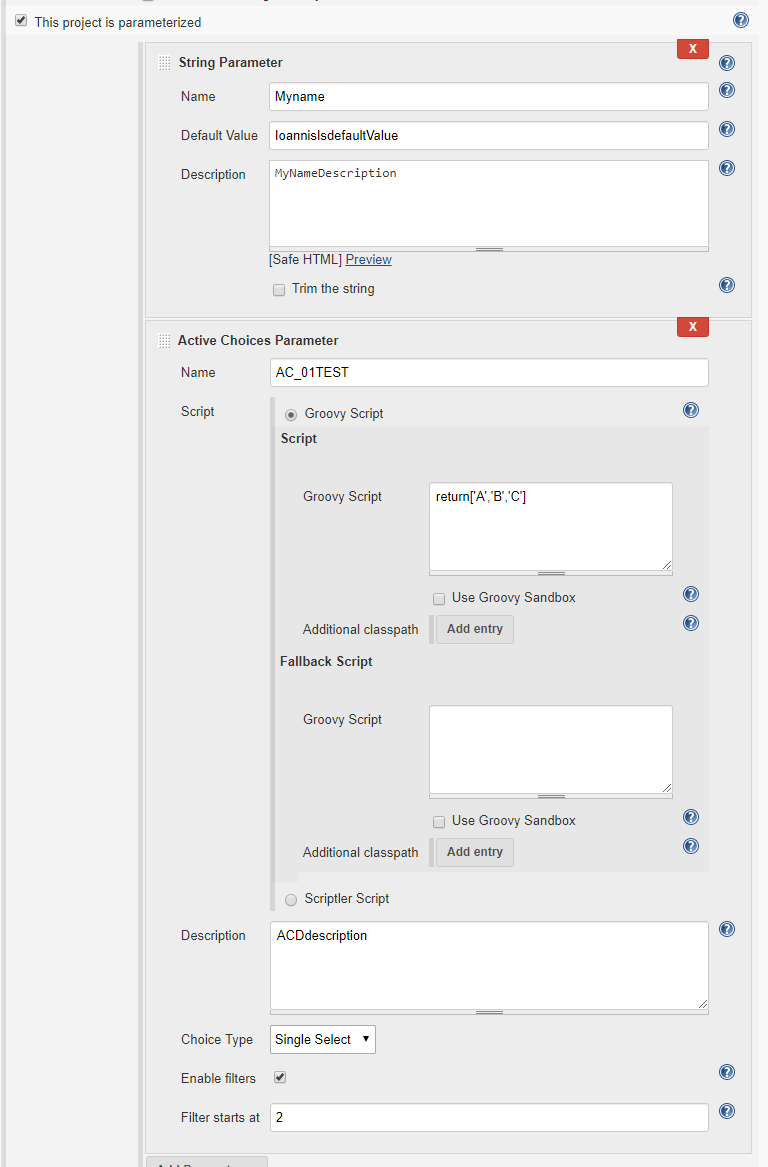
Examine the configuration of the newly created project


We will finally review our programmatic creation with the aid of a standard job configuration page. Find the job and click the configure action on the left panel.


Note that the 'Build with Parameters' Form UI is not updated until the project definition is saved to disk. 

Once we 'Apply' or 'Save' the job configuration we can then review the build form UI with the programmatically created parameters.

Summary

We can use Groovy scripts to interact with the Jenkins Java API in many different ways. This is a simple example, but clearly demonstrates the popular concept of  'configuration-as-code' and also helped me to understand some of the Jenkins Java API used with parametrized jobs.

Free-style parametrized jobs are key components to life-science Jenkins applications, and using the Jenkins API allows us to reuse subsets of the job parameters in an ad-hoc way to build reusable interactive components (more details here: imoutsatsos/JENKINS-JOB_PARAM_ASSEMBLER: Utility job for replicating parameters across freestyle jobs (github.com)).


Wednesday, January 2, 2019

External Libraries for Active Choices

Motivation

The question 'How can I use jar-X or library-X in my Active Choice Groovy script ' is frequently asked. Using external java libraries in Groovy is one of the most useful features of the language, and so we need to explore how to easily make external libraries accessible to the Groovy scripts used to generate Active Choice parameters.

A Note on Jenkins Security

Groovy script execution in Jenkins is increasingly coming under scrutiny by the Jenkins security team. Several things that were easy to do with Groovy in Jenkins are now restricted, or next to impossible, due to security restrictions. As a result, some of the recommendations below may or may not work in future Jenkins versions and with future upgrades to the various plugins.

In later versions of Jenkins (v2.361.x and perhaps others) the approaches described below for v222.x have been blocked by security and JDK11 requirements. I will post any new information I find out, but for the time being, consider this limitation if you are trying to use external libraries with Active Choices in more recent versions of Jenkins.

External Libraries for Active Choices (Jenkins v2.222.x)


Options for Jenkins v2.222.x and earlier
There are at least three different ways we can employ to include external Java/Groovy libraries in the classpath of the Active Choices script.

  1. Configure an 'Additional Classpath' in the Active Choices Parameter Groovy script. 
    • Place the required library on the classpath folder on the Jenkins server. You can configure the additional classpath using tokenized variables accessible to the Active Choices script
    • I frequently place external libraries in a dedicated folder under the JENKINS_HOME/userContent folder. For example, a classpath to the H2 java database jar can be configured as $JENKINS_HOME/userContent/lib/h2-1.3.176.jar
    • Note that additional Classpaths seem to be discouraged in the latest Groovy Plugin. See https://issues.jenkins-ci.org/browse/JENKINS-43844
  2. Use Grape, the JAR dependency manager embedded into Groovy. The @Grab Groovy annotation dynamically fetches the required java library
  3. Place the required library in an external java libraries folder. Java (and Groovy) use these classpaths by default
    • In the Jenkins Groovy Console execute: println System.getProperty("java.ext.dirs")  to review what folders are used for external libraries
    • The path to all external java folders can be discovered by examining the 'java.library.path' property in the System Information link on the 'Manage Jenkins' page
    • Placing the required jar in one of the available java.library.path folders should work well for most cases and should be considered secure since you'll need admin access to have the ability to copy the jars to the appropriate location and restart the Jenkins server for these changes to take effect.

In Conclusion

As always, there are multiple ways to achieve  this programming requirement. Hopefully, one of these works for you! I will be happy to hear of other alternatives that you may discover or have used. Please, leave them in your comments and I can incorporate them in the blog entry.

References


  1. Jenkins Active Choices Plugin
  2. Grape dependency manager in Groovy
  3. BioUno: Jenkins and DevOps Tools for Life Sciences


Wednesday, October 10, 2018

Jenkins Active Choices & Dynamic JavaScript Generation

Motivation

Many Jenkins job build forms using Active Choices parameters also include dynamically generated JavaScript. JavaScript is included into the build form in either of two ways:

  1. Directly from an Active Choice Reactive Reference parameter, returning an HTML <script> element or
  2. From an Active Choice Reactive Reference parameter reading a JavaScript file from the Jenkins server (either in JENKIND_HOME/userContent or JOB_NAME/BuildScipts folder of the job) and returning HTML with the file contents in the <script> element.

In addition, many job builds publish an interactive HTML build report that imports and uses JavaScipt libraries and scripts. To preserve the long term functionality for these reports (even as the custom JavaScript code may evolve) I also archive the custom JavaScript used in these forms, so each report uses a version of the script with  which it was intended to work with

As an example, I use the Openseadragon.js library (for web-viewing high resolution zoomable images) in a number of build forms. A Jenkins Active Choices Reactive Reference parameter rendered as an HTML <script> element that uses the OpenSeadragon.js library to render biological images on a Jenkins Build Form is shown below:

Initially, specific versions of this library were hard-coded into the Active Choice parameter groovy scripts and the text templates.

I revised the design strategy so that we can have a single, dynamic reference to the latest OpenSeadragon library that can then be referenced and used by Active Choice parameters, scripts and HTML templates

Overall Strategy


Implementation requirements

Global Jenkins Property

The library version is maintained as a global Jenkins parameter. We will use this as the single reference that can update all other occurrences of the library. So in the Jenkins Configuration we setup a Global Variable like:
OPENSEADRAGON_JS=openseadragon-bin-2.4.0

Active Choices Reference Parameter (on build form)

This dynamic parameter (code gist here) performs the following functions:
  • Parametrizes the JavaScript template to create the code used in the build form
  • Loads the JavaScript into the build form
  • Writes this dynamic JavaScript to a custom session specific WORKSPACE as the Report JavaScript  (if it will be included in the build generated HTML report)

Scriptlet Build Step: Generates HTML from Template

  • Parametrizes the HTML  Report template
  • Writes the generated dynamic HTML to an HTML Report File. (Note that in some cases the HTML Report loads and uses the JavaScript file generated by the Active Choices parameter above)
  • Code gist here

Scriptlet Build Step: Copy Session JavaScipt to Job Workspace 

  • Copies the session specific JavaScript file to the job workspace so that it can be archived and used in the build HTML report
  • Code gist here